Chapter
Editing the Showroom Content
WYSIWYG editing, AI suggestions, duplicating and sorting elements.
Editing is only possible if the AI Assistant displays 100% or has been paused. See section "Showroom Generation with AI Assistant".
Each Showroom has a sub-menu: Inspiration, Discovery, Showroom, Health Score, Activities and Sources. (Presenter and Orchestrator have been removed.)

Showroom: After generation, the WYSIWYG editing opens in the Showroom. If you move the mouse over the content, the editing options are displayed. You can edit by clicking on the green pencil icon.

You can generate new text suggestions in the Showroom elements "Greeting", "Summary", "Stakeholder Value", "Mutual success criteria and tasks" and "Value Proposition". To do this, go to the "Regenerate content" function in the three-dot menu or use the green AI button ✨.
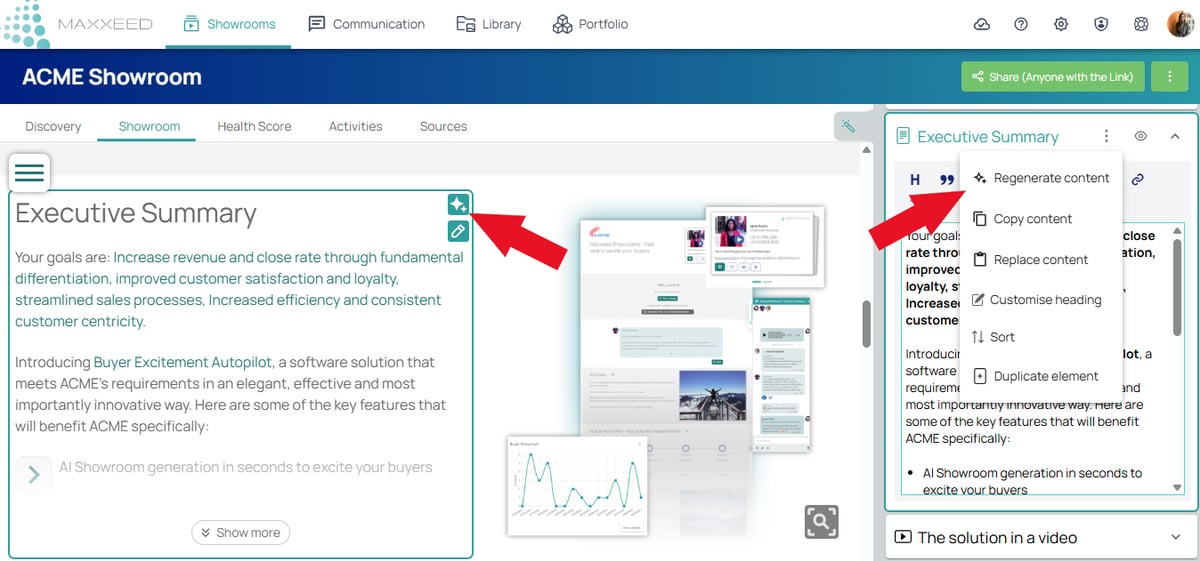
The three-dot menu offers further functions, e.g. copying the content of the entire element and pasting it into another Showroom or customising the heading of the element.
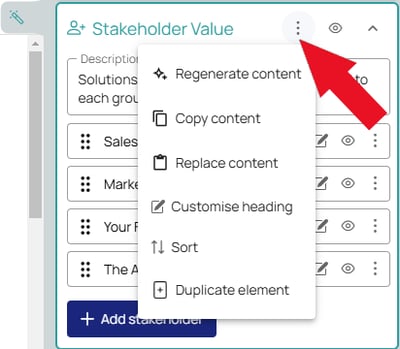
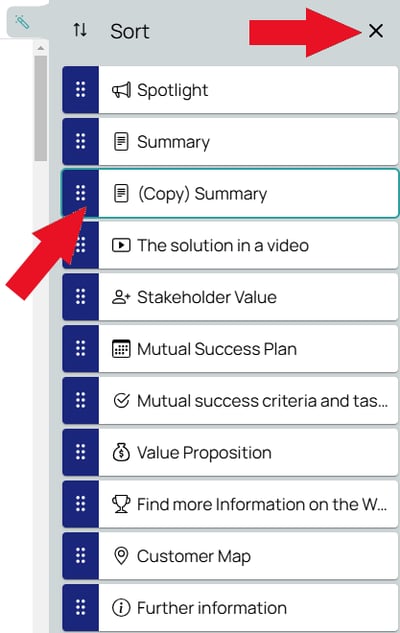
To add an element, click the three-dot menu and select "Duplicate." A copy of the element will be inserted below the original and the sorting mode is activated. Drag and drop the new element to the desired position, close the sorting mode and edit the title and content. You can delete newly added elements. The original elements cannot be deleted, only hidden.
Images and other elements also contain an AI button ✨ to generate further suggestions.
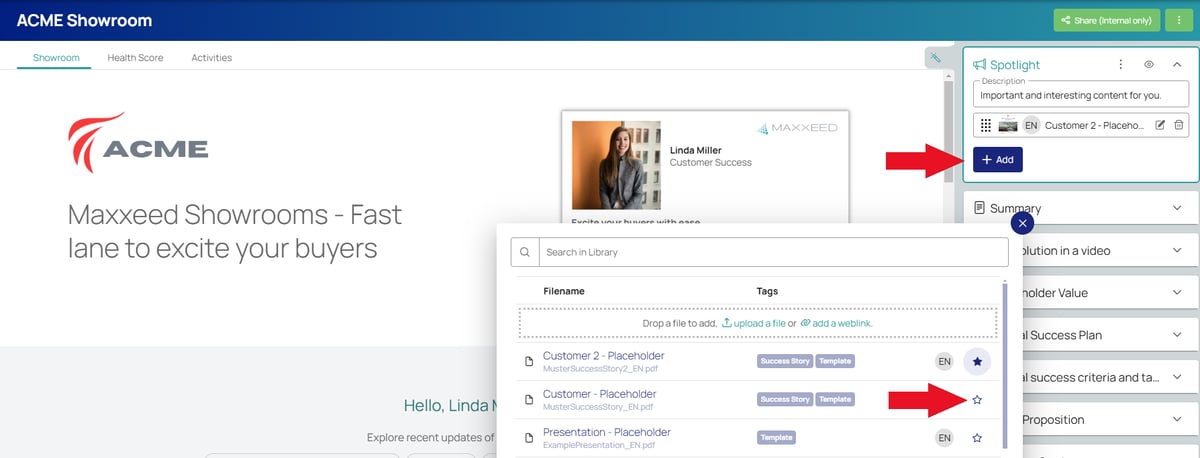
Adding media assets and weblinks to the Showroom: to display your sales information, open one of the elements "Spotlight", "Success Stories" or "Further information" and click on the blue "Add" button. Here you will find your media assets and weblinks from the Library or you can upload new ones. Click the star to display the media asset/weblink in the Showroom.